What you need
Interactive demo
Watch the full setup flow in under 2 minutes.
What gets imported
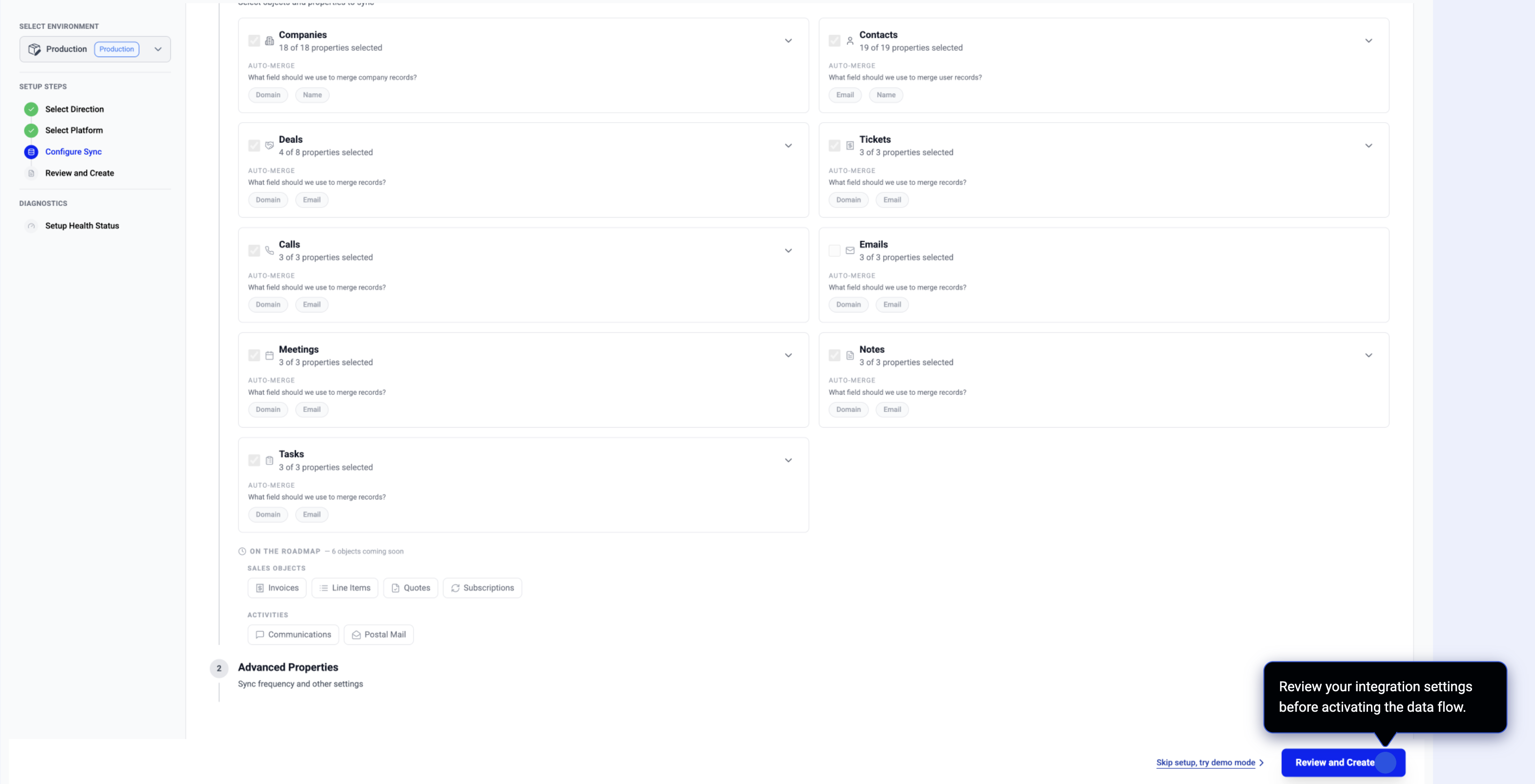
The following objects are synced from HubSpot into ThriveStack on an incremental daily schedule. All standard properties are imported — plus any custom properties you've created in your portal.
| Object | Default | What's included |
|---|---|---|
| Companies | On | Domain, name, industry, revenue, employee count, lifecycle stage, owner, all custom properties |
| Contacts | On | Name, email, job title, lifecycle stage, all custom properties |
| Deals | On | Name, amount, stage, pipeline, close date, owner. Requires company association to be set in HubSpot. |
| Tickets | On | Subject, priority, status, source type (email/chat/form/phone). Requires company association. |
| Calls | On | Title, notes, duration, direction (inbound/outbound) |
| Meetings | On | Title, notes, start time |
| Notes | On | Note body |
| Tasks | On | Subject, status, priority, due date |
| Emails | Off | One-to-one sales email logs. Off by default — large portals can have millions of records. Enable only if your team specifically needs email history. |
How to set up
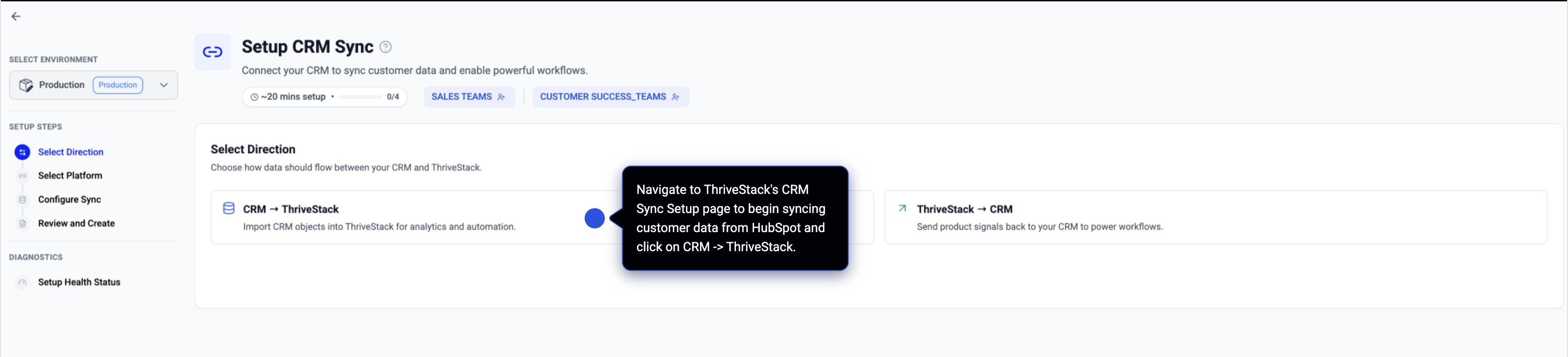
Go to Analyze → Onboarding → CRM and click Add Connection.
On the direction step choose HubSpot → ThriveStack.
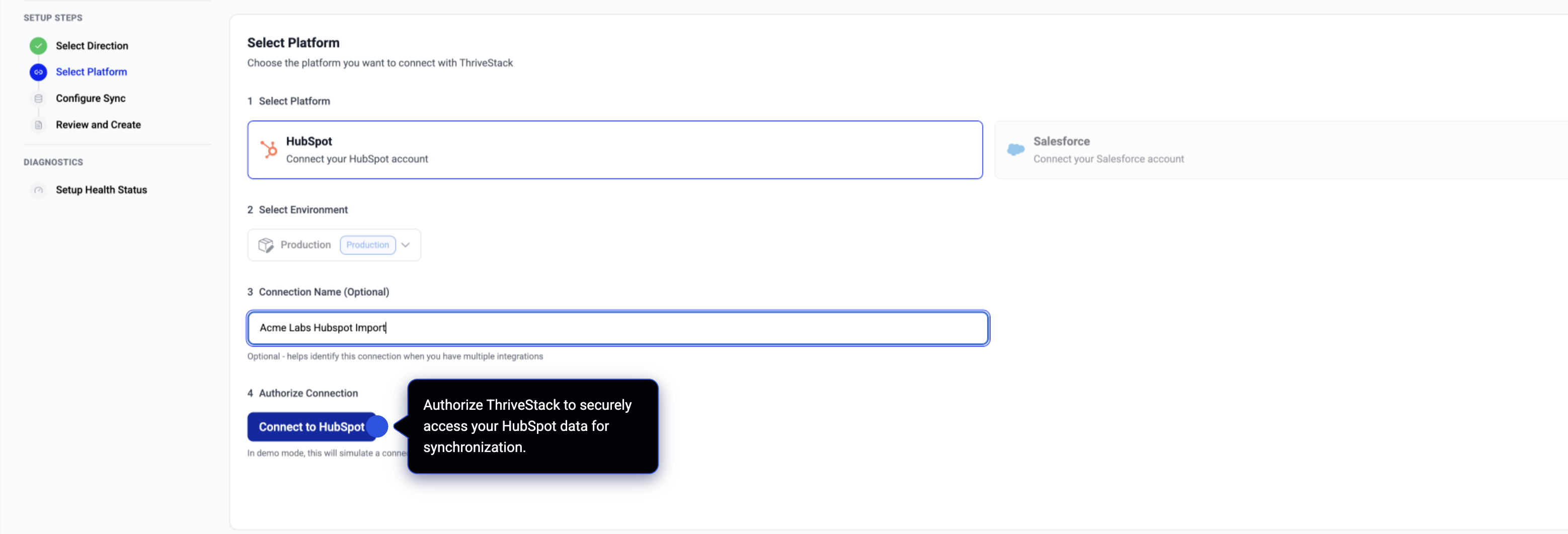
Click the HubSpot tile then Authorize with HubSpot. You'll be redirected to HubSpot's OAuth consent page — sign in with an account that has Super Admin or CRM Admin access and click Connect app. You'll be returned to ThriveStack automatically.
Toggle on the objects you want. All objects except Emails are on by default. Enable Emails only if your team specifically needs one-to-one sales email history — large portals can have millions of records.
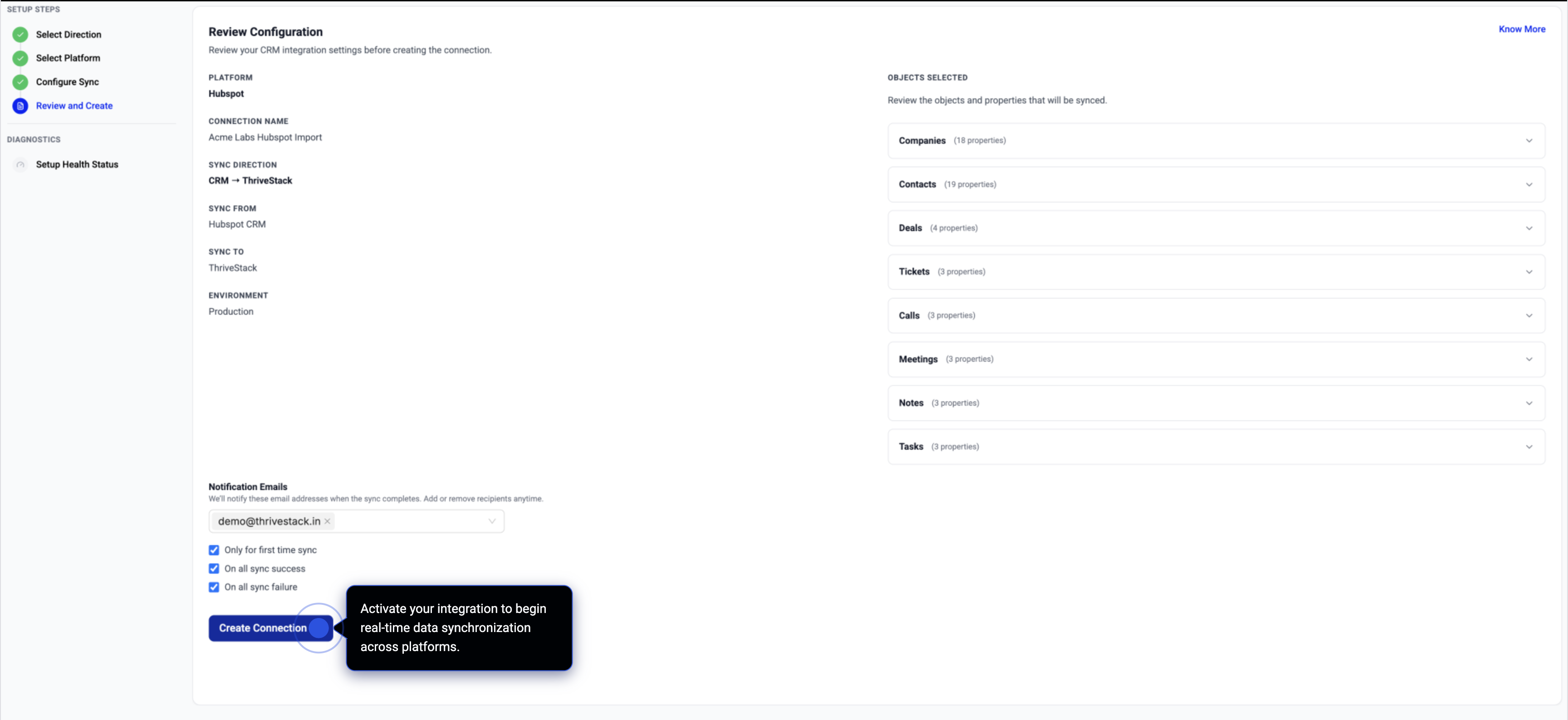
Review the summary and click Create Connection. The first full sync typically finishes in 5–30 minutes. All subsequent syncs are incremental.
Where to find imported data
Go to Analyze → Accounts, open any account, and look for the HubSpot panel. ThriveStack matches accounts to HubSpot companies by domain. You'll see four tabs:
- Properties — All HubSpot company properties including custom fields.
- Deals — Open and closed deals with stage, amount, close date and owner. Shows open pipeline total and closed-won total at a glance.
- Tickets — Support tickets with priority, stage and source channel.
- Engagements — Full activity timeline — calls, meetings, notes and tasks sorted by most recent. Filter by type.
Sync schedule
| Run | Mode | Notes |
|---|---|---|
| Daily at 02:00 UTC | Incremental | Only records modified since the last run are fetched. New records are appended; updated records overwrite the previous version. |
| Manual trigger | Incremental | Click ⋯ → Trigger Sync on your connection card to run an immediate sync without waiting for the daily schedule. |
| First sync | Full refresh | The first run after connecting imports all historical records. Takes 5 min (small portal) to several hours (100k+ records). All subsequent runs are incremental. |
Refreshing an existing connection
If you connected HubSpot before deals and engagements were supported, a banner will appear on the CRM page. Two scenarios:
- Re-authorize — Your OAuth token is missing required permissions. Click the button, approve on HubSpot, and your connection upgrades automatically with all new data streams in one step. No data is lost.
- Enable now — Your token already has the right permissions but the sync pipeline is missing the new streams. One click, no redirect, done in seconds.
Troubleshooting
If this doesn't resolve your issue or you're running into a problem we haven't covered, email us at support@thrivestack.ai and we'll help you.
Also see: ThriveStack → HubSpot (Export) to push product signals back into your CRM.