What you need
Interactive demo
Watch the full outbound setup in under 2 minutes.
What gets exported
ThriveStack writes to HubSpot Company properties. On the first sync it creates a ThriveStack property group in your portal — you'll see it appear under any company record and can use it in HubSpot workflows, lists and sequences.
| Property group | Fields |
|---|---|
| Revenue | ts_mrr, ts_arr, ts_revenue_currency, ts_last_transaction_date, ts_last_transaction_amount, ts_next_due_date, ts_invoice_count |
| Activation | ts_activation_status, ts_activation_completion_pct, ts_activation_current_step, ts_activation_champion_user, ts_activation_ttv |
| Engagement | ts_engagement_dau, ts_engagement_wau, ts_engagement_mau, ts_engagement_stickiness_weekly, ts_engagement_activity_trend, ts_engagement_last_activity |
| Acquisition | ts_acquisition_utm_source, ts_acquisition_utm_medium, ts_acquisition_utm_campaign, ts_acquisition_time_to_signup_days |
| Expansion signals | ts_expansion_types, ts_expansion_signal_count, ts_contraction_types, ts_contraction_signal_count |
| Identity | ts_id — stable ThriveStack account identifier used for deduplication on subsequent syncs |
Use in HubSpot workflows: Once properties are synced you can build automations — for example, enroll accounts into an upsell sequence whents_activation_status = completeandts_mrr = 0.
How to set up
Go to Analyze → Onboarding → CRM and click Add Connection.
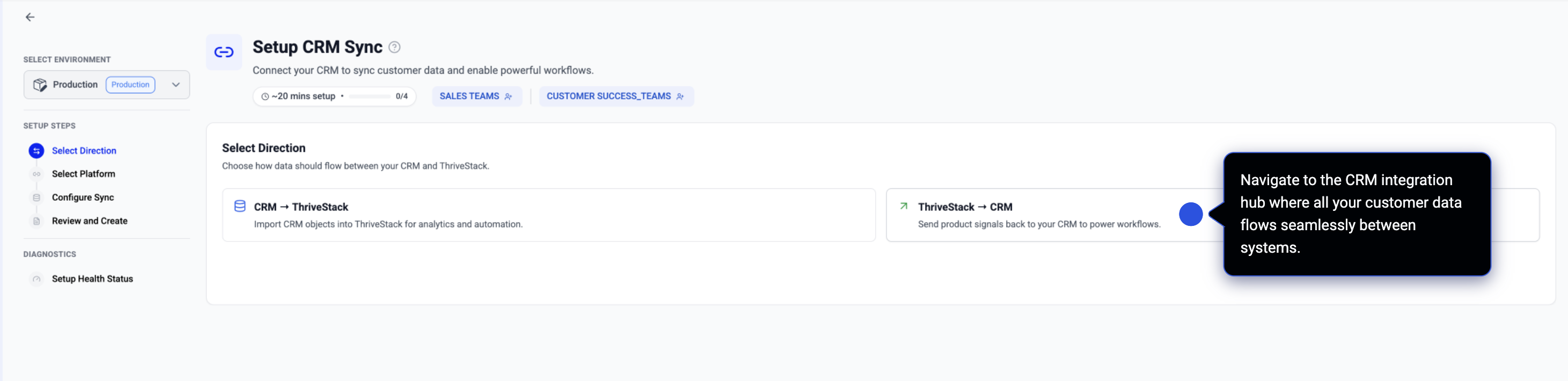
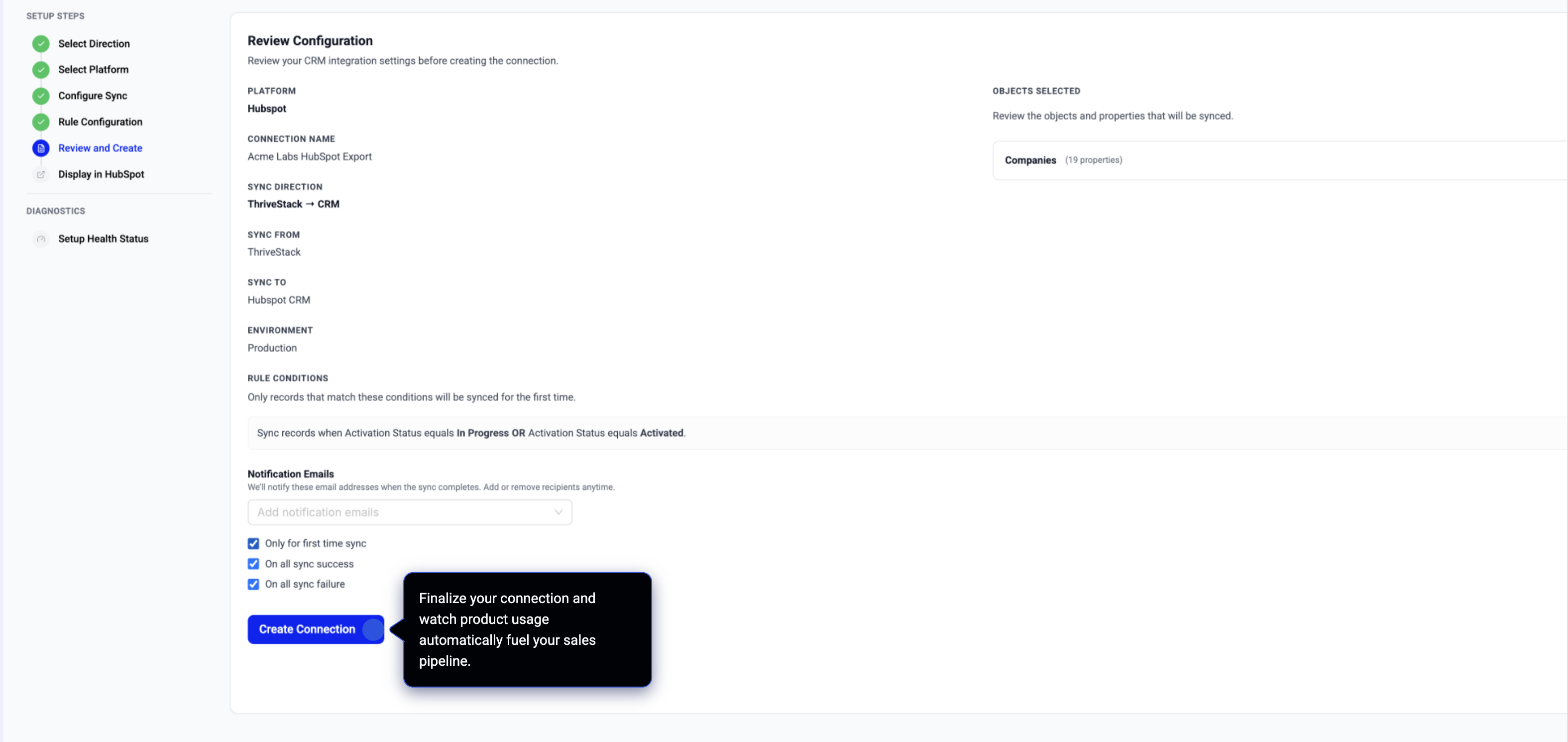
On the direction step choose ThriveStack → HubSpot.
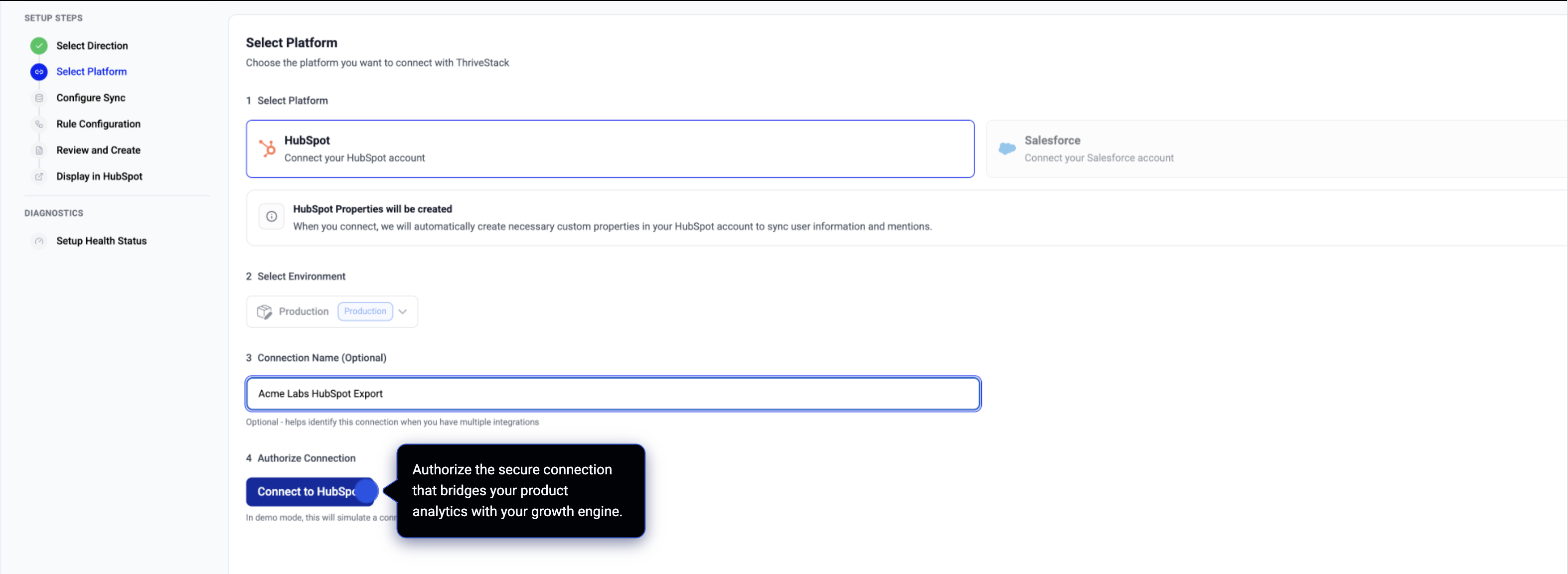
Click HubSpot then Authorize with HubSpot. Sign in with a Super Admin or CRM Admin account — write access is required to create the ThriveStack property group.
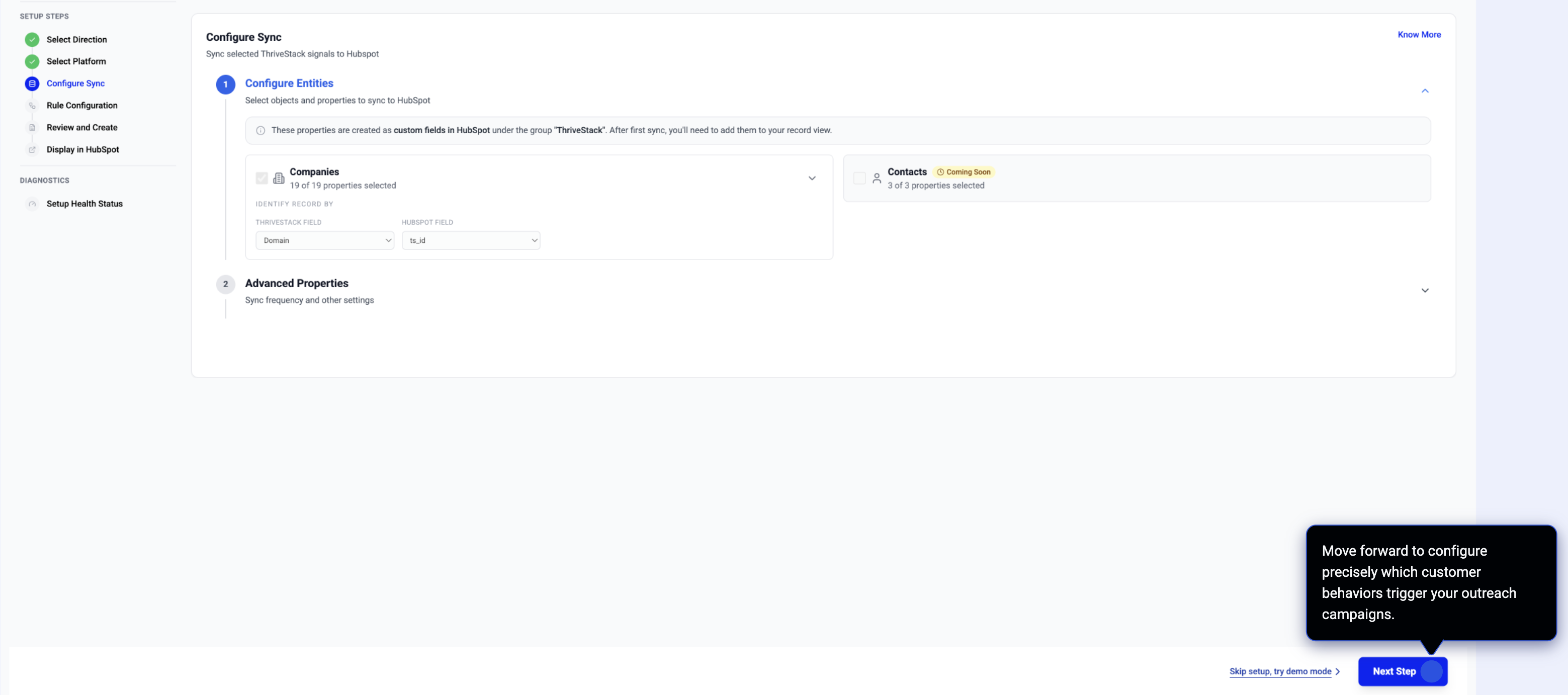
Select which ThriveStack fields to push. You can push a subset — for example, just MRR and activation status if that's all your sales team needs. All selected fields map to standard ts_-prefixed company properties in HubSpot.
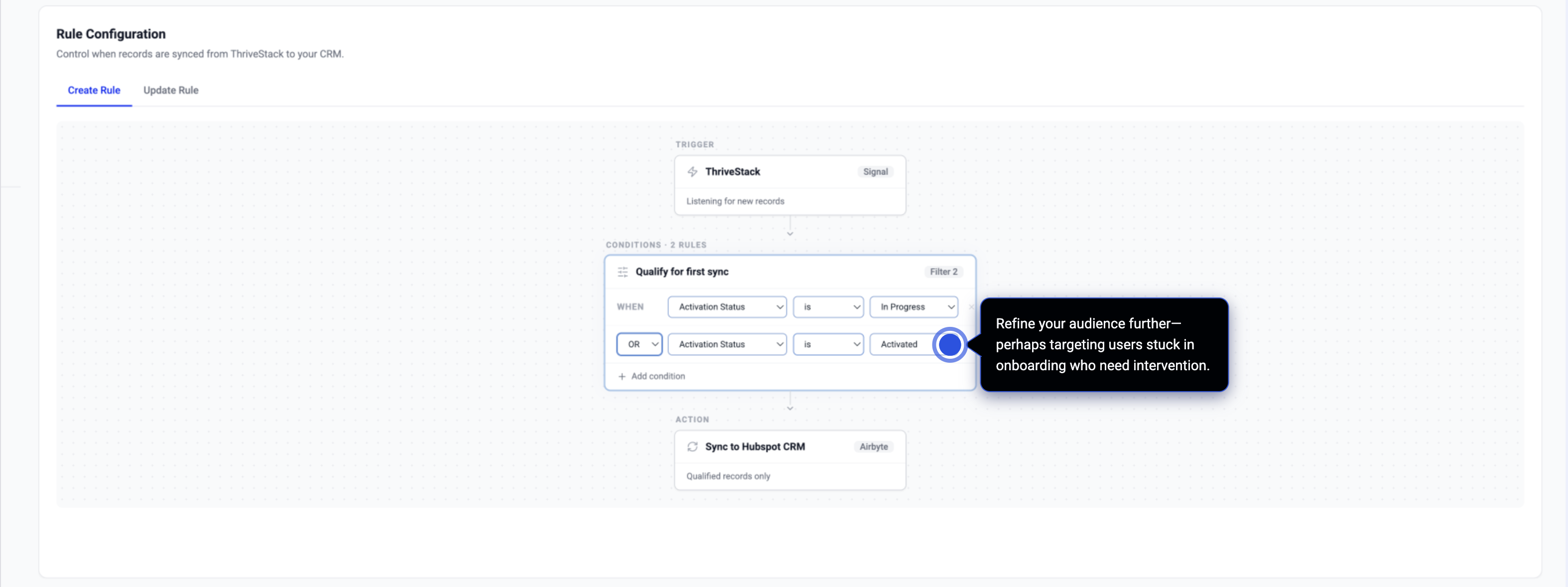
Use first-sync rules to control which accounts get pushed — for example, only accounts with MRR > 0 or activation status = complete. This prevents cluttering HubSpot with trial or empty accounts.
Click Create Connection. ThriveStack creates the property group in HubSpot and runs the first sync. Properties will appear under ThriveStack on each matched company record.
How accounts are matched
ThriveStack matches your accounts to HubSpot companies using the domain field. On the first sync it writes a ts_id property to each matched company. All subsequent syncs use this stable identifier — so if a company's domain changes in HubSpot, the sync still works correctly.
If no match is found by domain, ThriveStack creates a new company record in HubSpot using your account's name and domain.
Sync schedule
| Run | Mode | Notes |
|---|---|---|
| Daily at 03:00 UTC | Incremental | Runs 1 hour after inbound sync (if both directions are active) so the freshest ThriveStack data is pushed. Only accounts with changed values since the last run are updated in HubSpot. |
| Manual trigger | Incremental | Click ⋯ → Trigger Sync on your connection card to push the latest values immediately — useful after a large activation campaign or MRR update you want reflected in HubSpot right away. |
Troubleshooting
If this doesn't resolve your issue or you're running into a problem we haven't covered, email us at support@thrivestack.ai and we'll help you.
Also see: HubSpot → ThriveStack (Import) to pull deals, tickets and engagement history into ThriveStack.