Connect Vercel
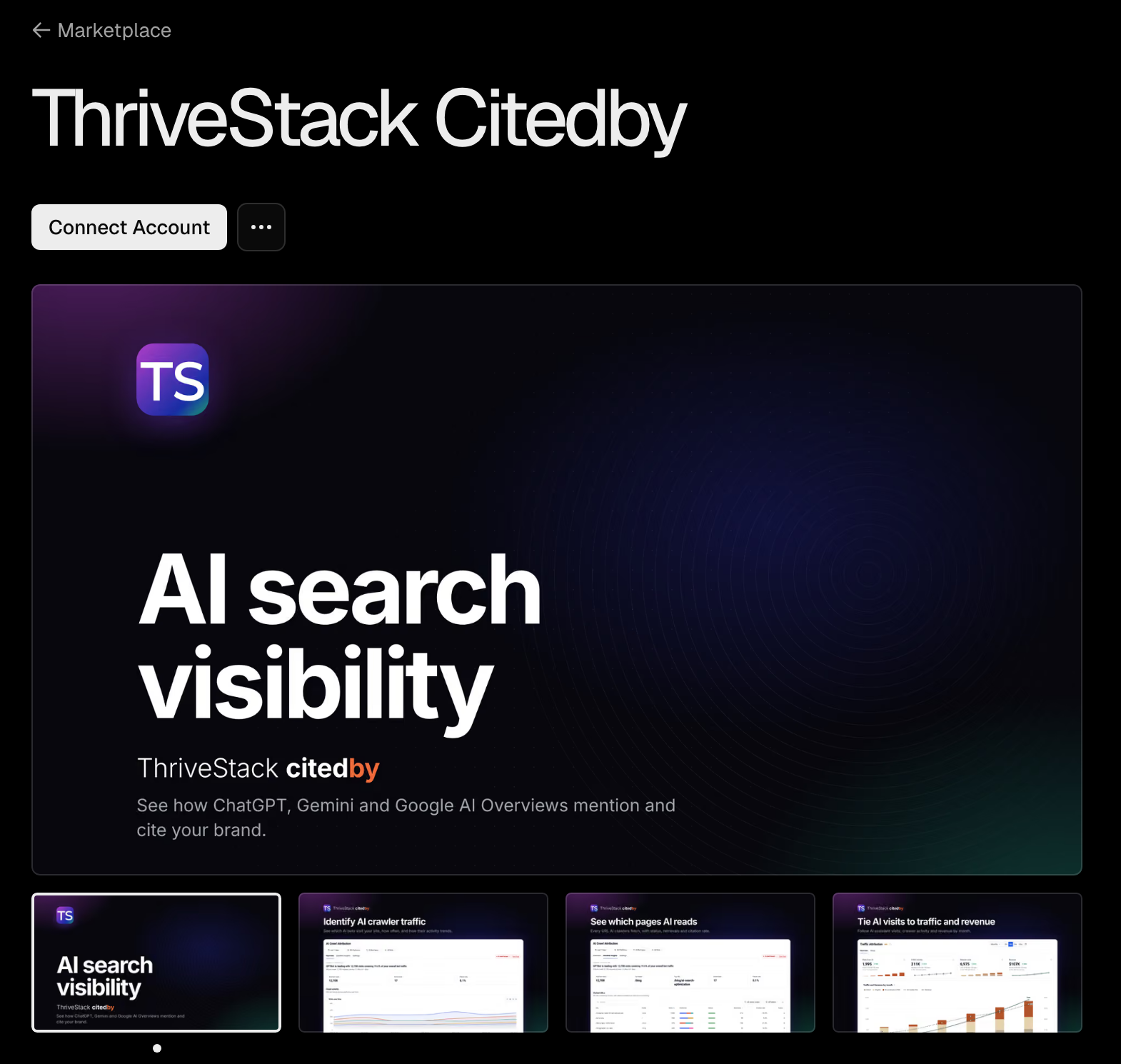
See which AI crawlers read your Vercel site and which pages they fetch. Connect in about a minute, with one click, no code changes and no environment variables.
What this does
AI assistants such as ChatGPT, Claude and Perplexity send crawlers (GPTBot, ClaudeBot, PerplexityBot and 40+ more) to read your pages. Those visits are invisible to tools like Google Analytics, because crawlers do not run JavaScript or accept cookies. They do show up in your server logs.
Connect with Vercel sends those logs to AI Crawl Attribution in ThriveStack Citedby. You approve ThriveStack in Vercel and pick your projects, and ThriveStack creates a Vercel Log Drain for you. From then on you can see, for your domain:
- Which AI crawlers visit, and how often.
- Which pages they read, and what your site answered (200, redirect, 404, 5xx).
- Crawl problems that can cost you citations, with recommended fixes.
At a glance
| Time | About 1 minute to connect. The first AI crawler visit usually appears within 10–15 minutes. |
| Vercel plan | Pro or Enterprise (Vercel Log Drains are not available on Hobby). On Hobby, use the middleware option. |
| You need | A ThriveStack Citedby account (you can create one during setup) and a Vercel role that can add integrations to your team, usually the team Owner. |
| Changes to your project | None. No code, no environment variables, no redeploy. |
| What we keep | Only AI crawler requests on your domain. Everything else is dropped on arrival. Details |
| Cost | ThriveStack's AI Crawl Logs add-on (free during your trial) plus Vercel's own charge for log drain data. Details |
Before you start
- Check your Vercel plan. Log Drains need Vercel Pro or Enterprise. If your team is on Hobby, ThriveStack tells you when you connect and points you to the middleware option, which works on any plan.
-
Know which site you are tracking. ThriveStack tracks the domain saved on your brand (shown at the top of the Connect panel, for example
acmelabs.com). The Vercel project you pick must serve that domain, eitheracmelabs.comorwww.acmelabs.com. - Sign in or sign up. You need a ThriveStack Citedby account. If you are new, you create it as part of setup, and your free trial starts.
- Behind Cloudflare? If Cloudflare proxies your domain in front of Vercel, use the Cloudflare Worker source on the same Setup page instead. It sees every request before Vercel does.
Connect from ThriveStack
This is the most direct way. You start in ThriveStack, approve access on Vercel, and come back to finish. (If you would rather start from Vercel, see Start from Vercel instead.)
-
Open Setup and choose Vercel
In ThriveStack Citedby, go to Attribution → Setup and click Vercel under Server logs.
Setup is the one place where every data source for AI Crawl, Traffic and Revenue is connected.
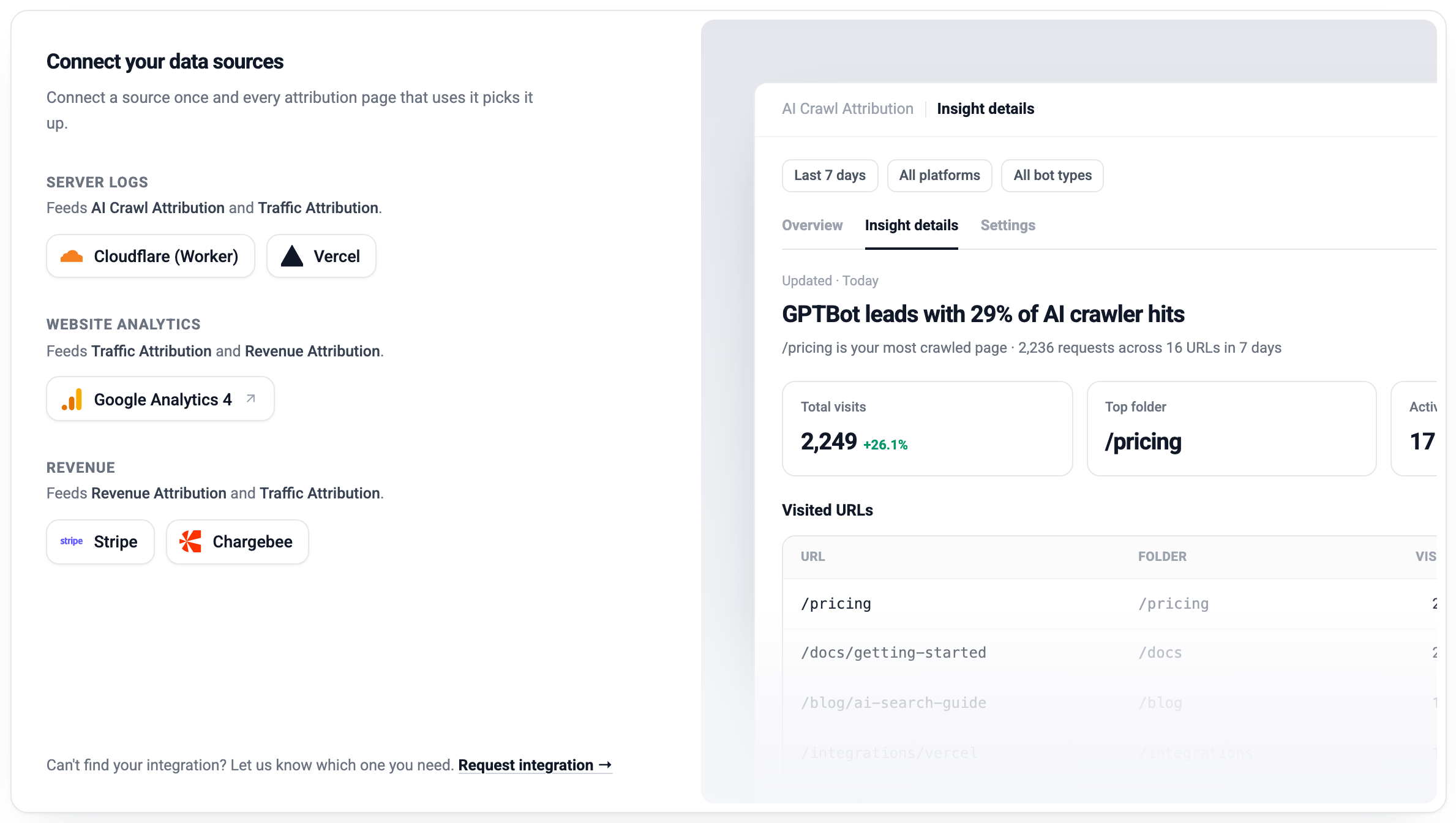
Setup: choose where your site runs. Click any screenshot to open it full size. -
Click Connect with Vercel
The steps run across the top: Connect, Verify, Activate. Connect with Vercel is the first tab and the easiest method, so it is selected for you.
Click the button. (To use another method, pick one of the other tabs. They are described below.)
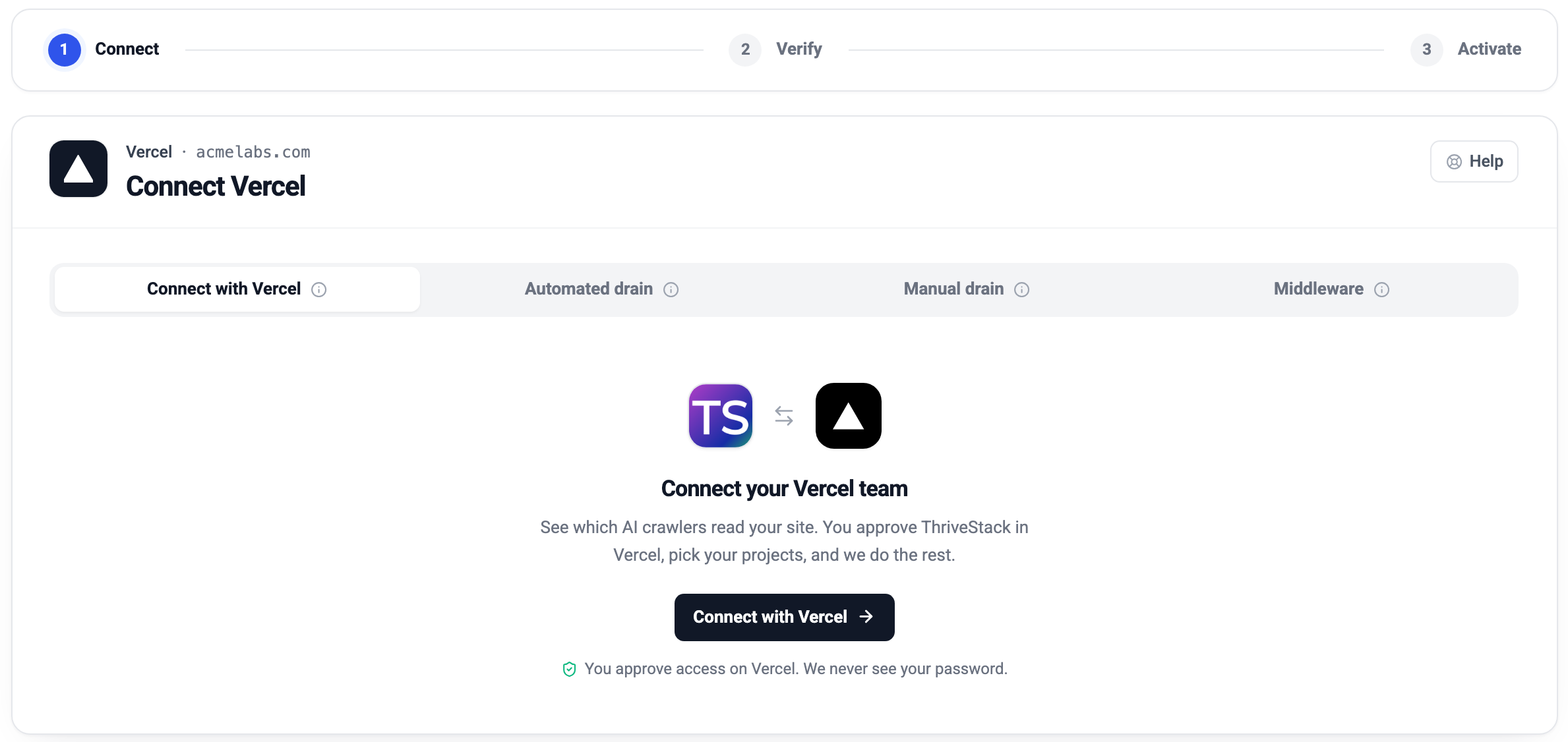
Connect: one button. You leave for Vercel to approve, then Vercel sends you straight back. - Approve ThriveStack in Vercel Vercel opens and asks you to choose the team that owns your site and to approve ThriveStack Citedby. Review what it asks for (see What access we request) and approve. ThriveStack never sees your Vercel password. If you change your mind, go back: the button comes back and ThriveStack tells you the connection was cancelled and nothing was changed.
-
Choose the projects to track
Back in ThriveStack you see Vercel is connected to ThriveStack. Tick the Vercel projects whose AI crawler visits you want to see.
Projects that serve your domain are marked Serves yourdomain.com and are already selected for you.
Click Connect Vercel. ThriveStack now creates the log drain in your Vercel team.
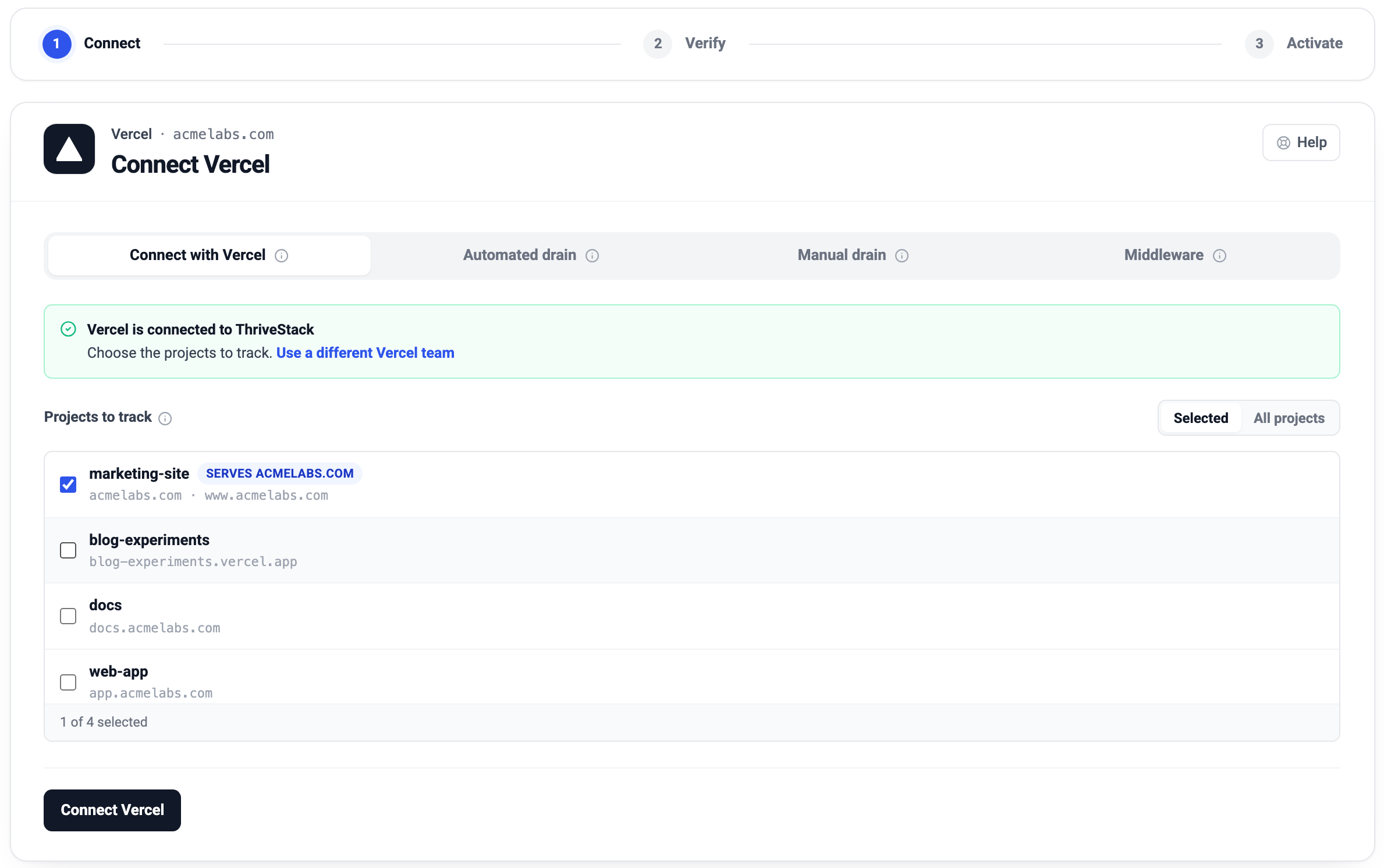
Pick only the projects you need. Fewer projects means less data shared and a smaller Vercel bill. Selected or All projects? Selected sends logs only from the projects you tick. All projects also includes every project you add to this team later. If your team has more than 8 projects, a search box appears. Wrong team? Use Use a different Vercel team.
-
Confirm it is working
ThriveStack checks two things in order: first that Vercel is delivering logs (about a minute), then that the first AI bot visit arrived.
Most sites see the first visit within 10–15 minutes. It can take up to 24 hours, depending on how often AI crawlers visit. Check now re-reads the status on the spot.
Do not want to wait? Click Send test bot traffic. ThriveStack sends one real request to your site using the name of a known AI crawler (GPTBot), exactly as a real crawler would, and you see it arrive within a minute.
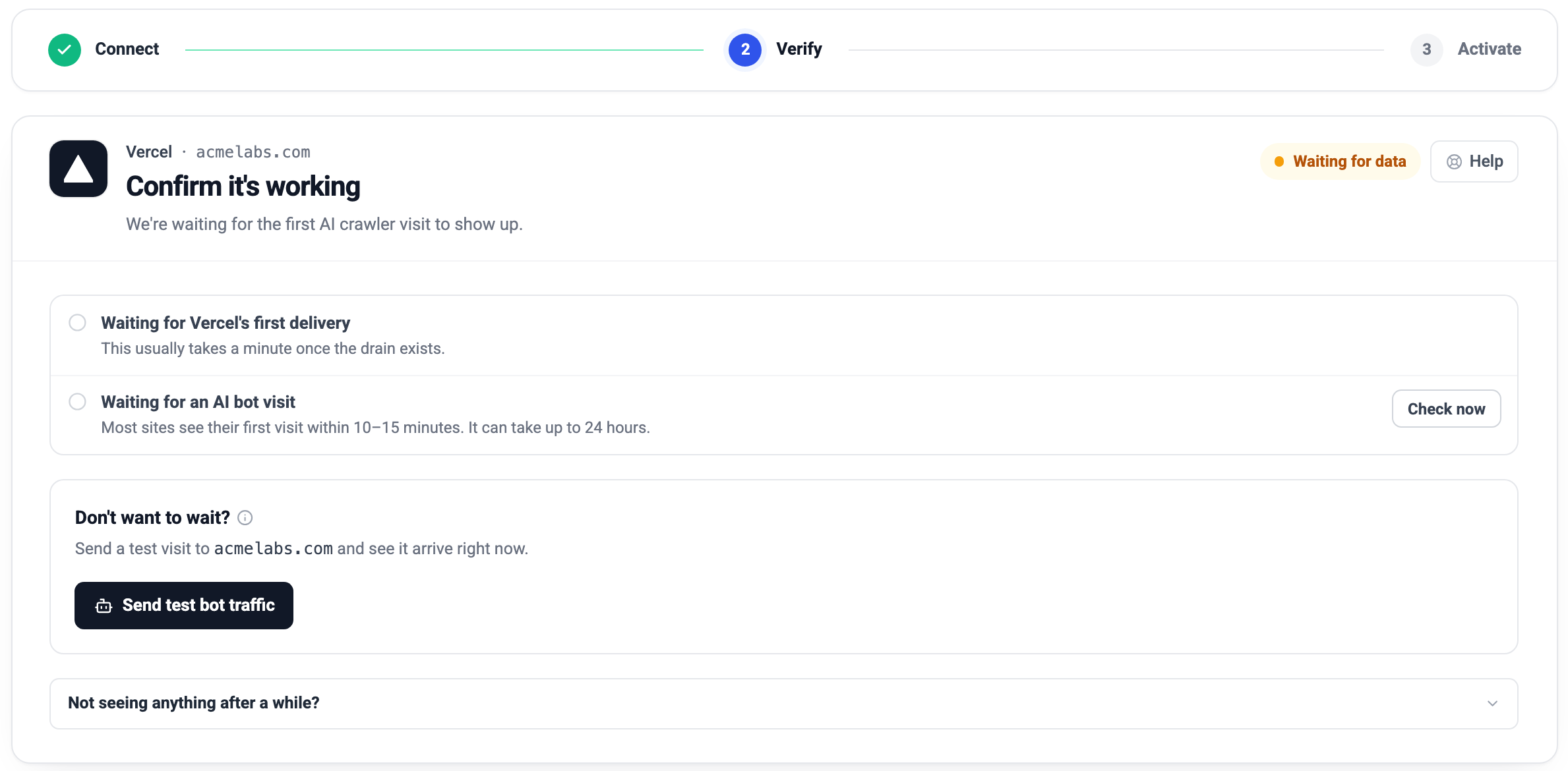
Verify. The test visit is a quick way to see data right away. The test visit only appears if one of the projects you selected serves your tracked domain. If it does not appear, see Troubleshooting.
-
Turn on AI crawl logs
Once data is flowing, the last step activates the AI Crawl Logs add-on, which unlocks the dashboards.
During your free trial it costs nothing to activate, and the fee starts when the trial ends. Otherwise you pay on Stripe and come straight back.
Everything collected since you connected is kept, and appears the moment you activate. Pricing details
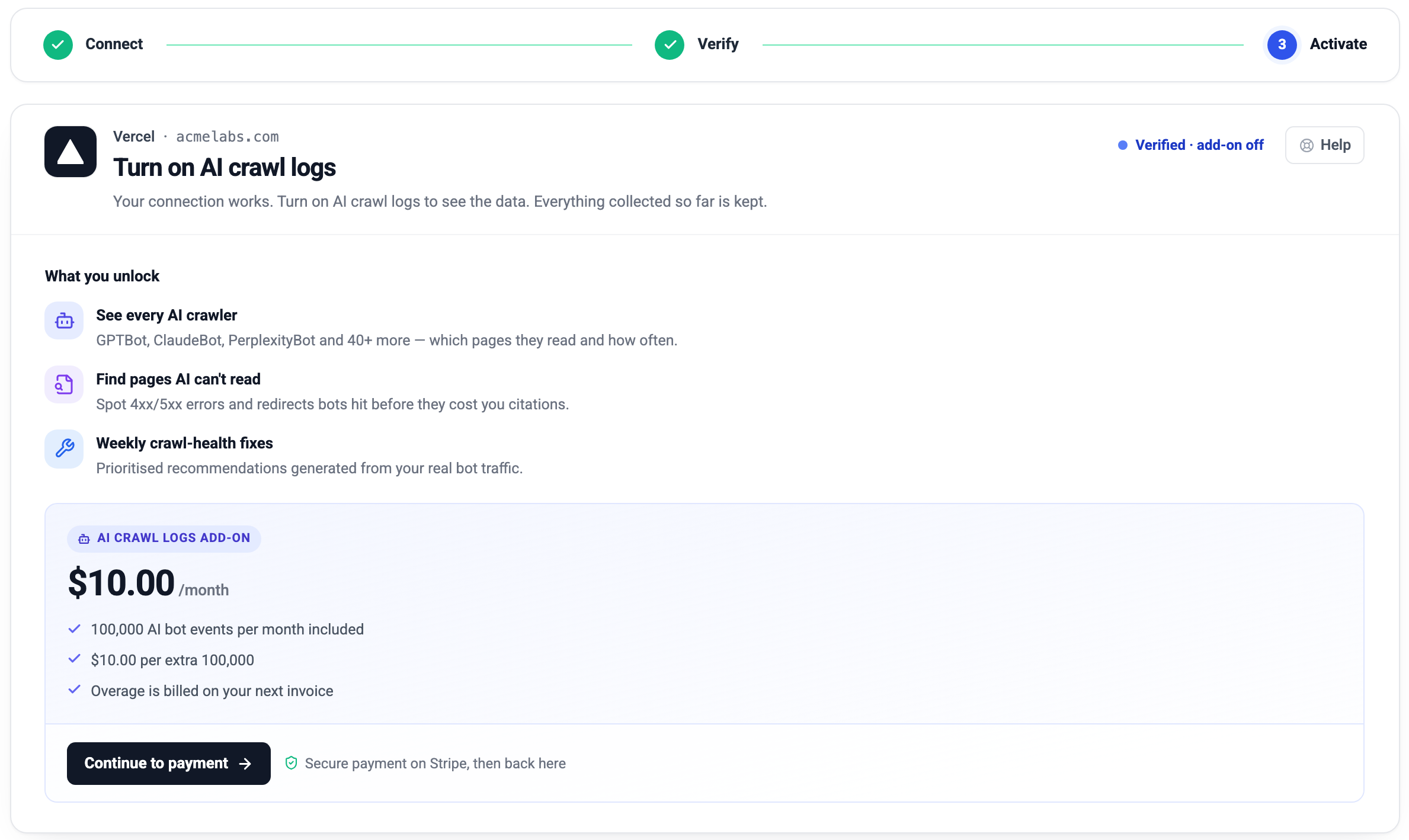
Activate. Your connection already works at this point. -
You are live
All three steps are green and the card says You're all set, with when the last delivery arrived. Open See which AI crawlers visit or Drill into pages to start exploring.
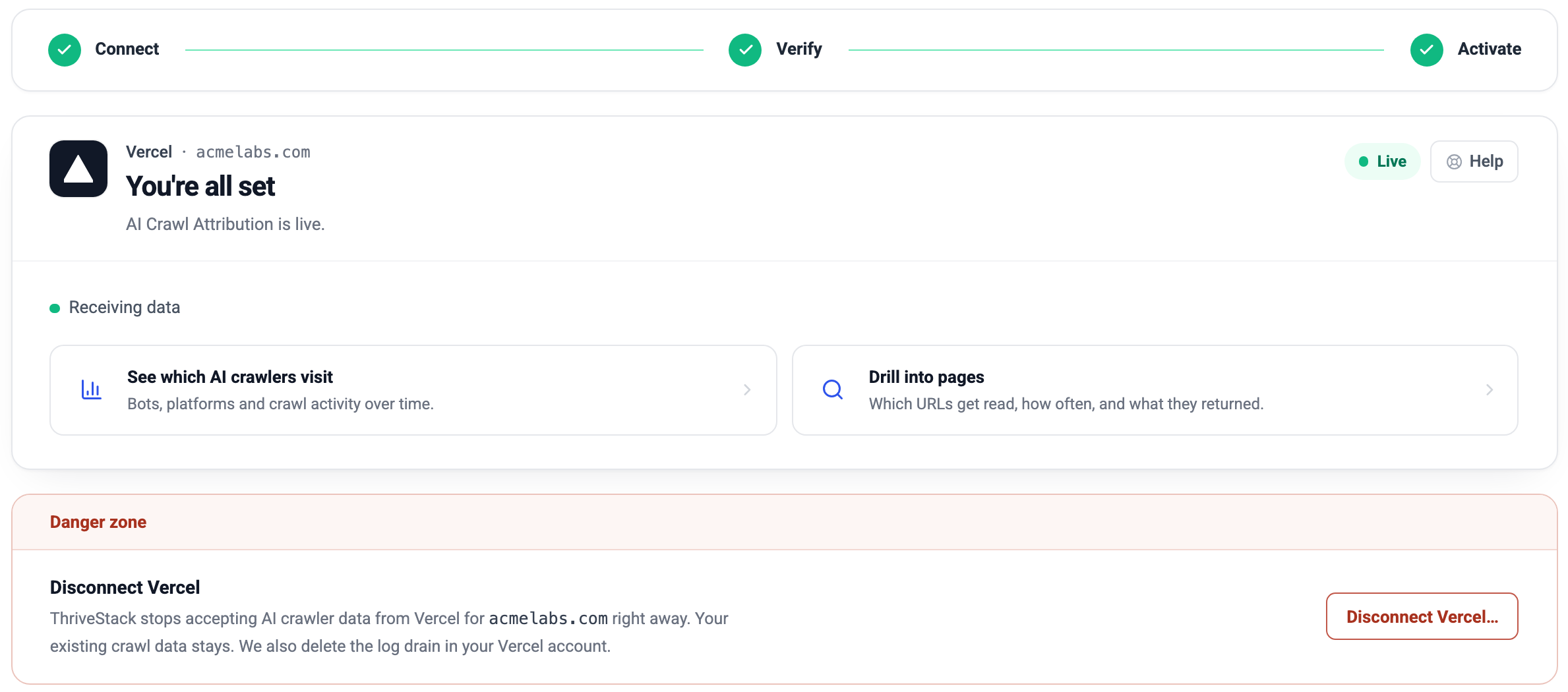
All steps complete. The Danger zone below is where you disconnect.
Start from Vercel instead
You can also add ThriveStack from the Vercel Marketplace: open the ThriveStack Citedby listing and click Connect Account. The result is the same connection. What differs is the order of the steps:
- Approve in Vercel. Choose your team and approve ThriveStack Citedby.
- Sign in or sign up to ThriveStack. If you are new, create your account, your workspace and your brand (this is where your tracked domain comes from). Your Vercel approval is held for you, in this browser, while you do this.
- Confirm the team. ThriveStack shows the Vercel team and the ThriveStack brand you are about to connect, with Connect this team and Cancel and remove. Check both before continuing. Wrong brand? Choose Cancel, switch brands in ThriveStack, then add ThriveStack from Vercel again.
- Choose the projects and click Connect Vercel, exactly as in step 4 onward above. When the log drain is created, ThriveStack takes you back to Vercel to finish.
- Verify and activate in ThriveStack, under Attribution → Setup (steps 5 and 6 above).
Take your time, but not too long. A Vercel approval that is not finished in ThriveStack within 2 hours is removed automatically, and you start again from step 1. Cancel and remove uninstalls ThriveStack from your Vercel team straight away, and nothing is connected.
What ThriveStack collects
Vercel sends the request logs of the projects you chose to ThriveStack. ThriveStack keeps only requests made by AI crawlers on your domain and discards everything else immediately on arrival, before anything is stored.
| Kept for each AI crawler visit | Never stored |
|---|---|
|
|
The log drain ThriveStack creates is named ThriveStack AI Crawl Attribution (yourdomain.com), so you can recognize it in Vercel under Team Settings → Drains.
What access we request
When you approve ThriveStack, Vercel shows the permissions below. ThriveStack asks for nothing else. The access token Vercel issues is stored encrypted and is used only to list your projects and to create or delete the log drain.
| Permission | Why ThriveStack needs it |
|---|---|
| Drains (read and write) | To create the log drain, and delete it when you disconnect. |
| Projects (read) | To show the project checklist, and to mark the project that serves your domain. |
| Team (read) | To show which team you are connecting, and detect a Hobby plan. |
| Integration configuration (read and write) | To keep track of the installation, and stop when you remove it from Vercel. |
Costs
Two separate charges are involved. Neither depends on the number of people who visit your site.
- ThriveStack: the AI Crawl Logs add-on. It is free to activate during your free trial, and the fee starts when the trial ends. The add-on card shows the exact price before you pay. At the time of writing it is $10 per month and includes 100,000 AI bot events per month. Extra events are billed in blocks of 100,000 on your next invoice.
- Vercel: log drain data. Vercel bills log drains by data volume (at the time of writing, $0.50 per GB; see Vercel's documentation for current pricing). Vercel sends ThriveStack the logs of every project you select, so choose only the project that serves your domain. That keeps the Vercel bill small, and it keeps the data shared with ThriveStack small too.
What you will see
Open Attribution → AI Crawl. The page has three tabs: Overview, Detailed Insights and Settings (billing for the AI crawl logs add-on). Connecting and disconnecting your site is done in Attribution → Setup. The screenshots below use sample data.
Overview: who visits, and when
Total bot visits, how many different AI bots visited, your failure rate, and a chart of visits over time by crawler.
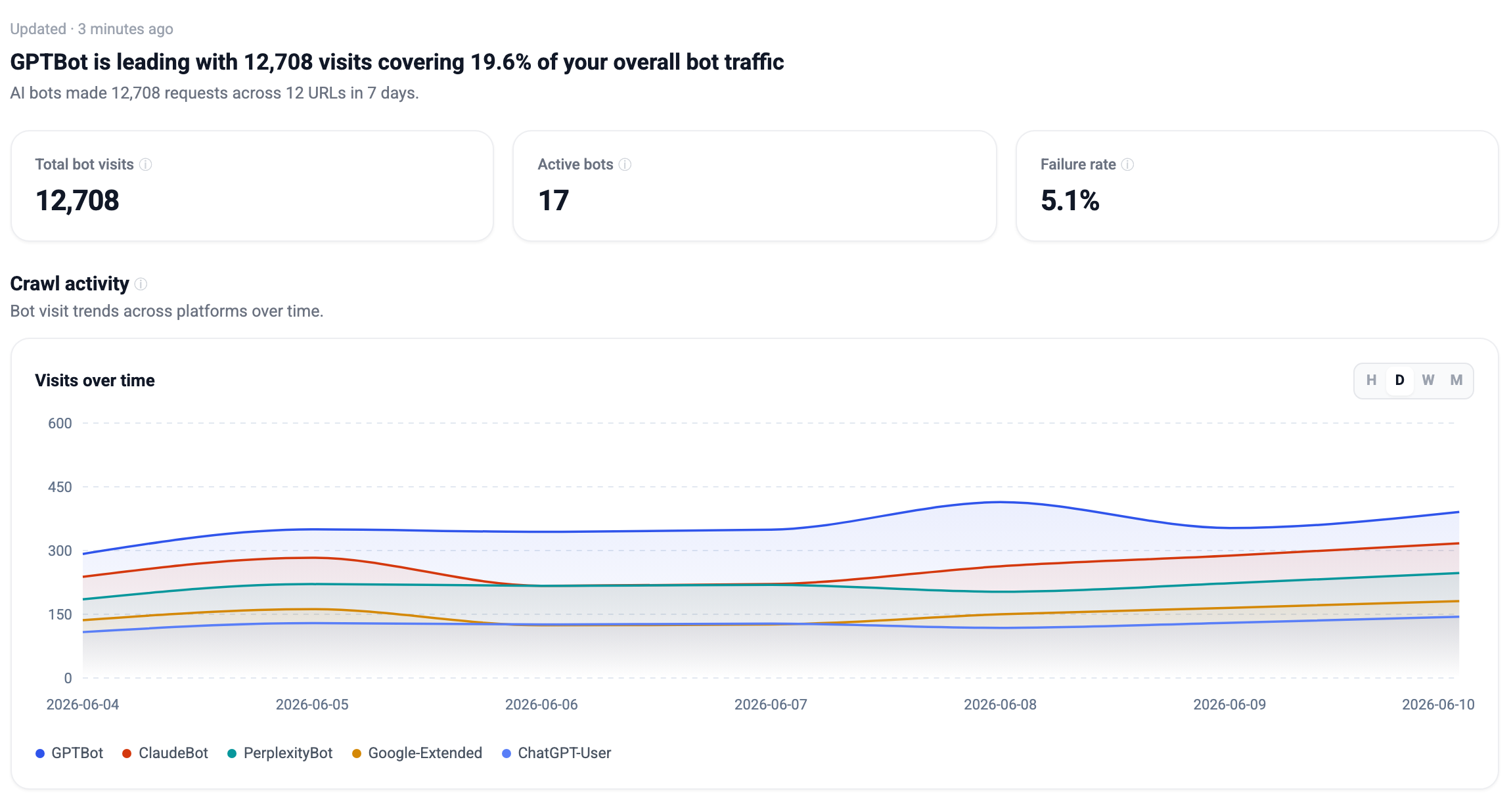
Detailed Insights: which pages
Every URL AI crawlers fetched, with visit counts, which platforms visited, the status your site returned, retrievals and citation rate. Filter by status code or folder, or export the table.
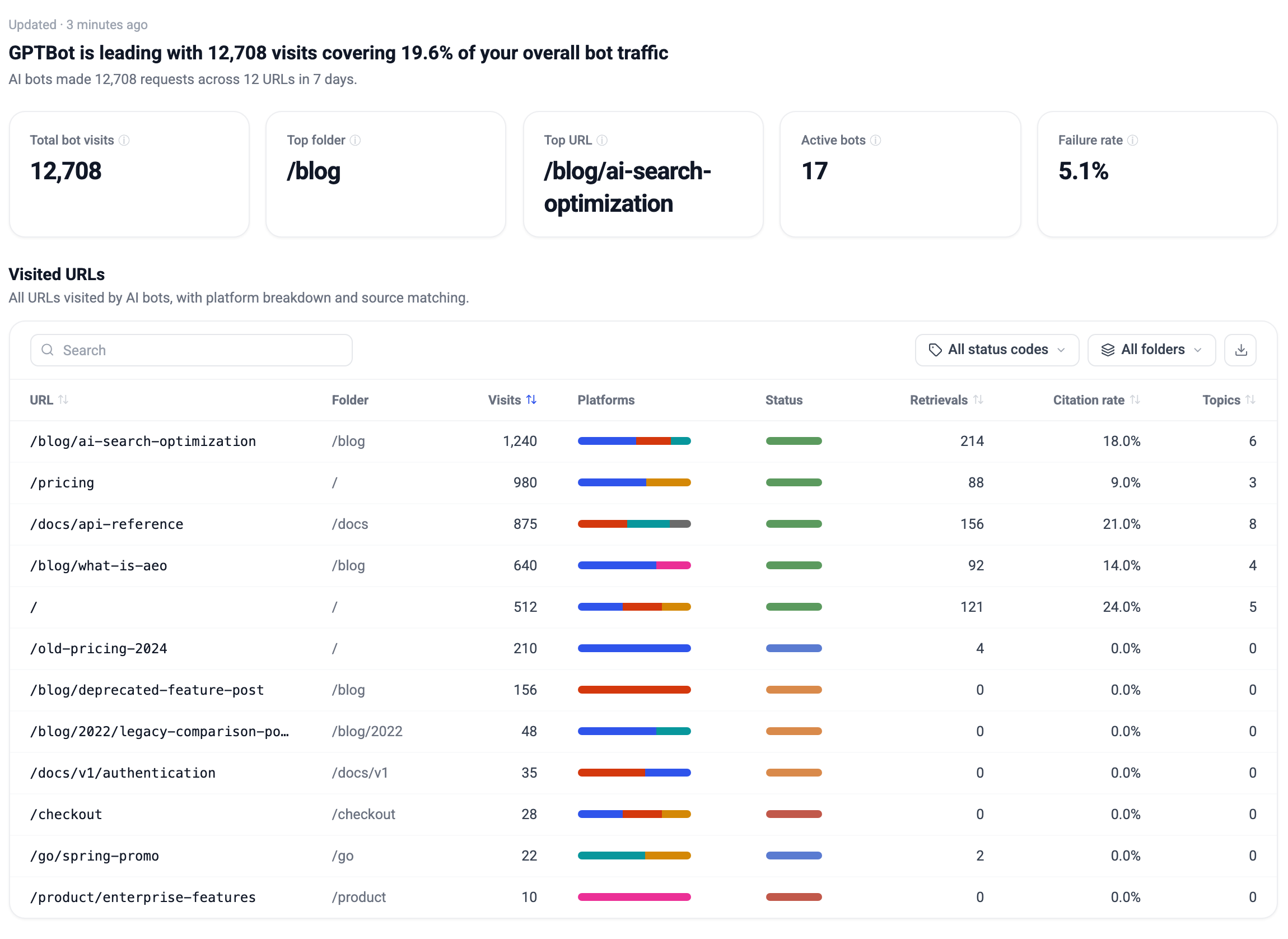
Pages that AI crawlers keep hitting but that return errors or redirects (4xx, 5xx, 301/302) are the quickest wins. A page that cannot be read cannot be cited.
Other ways to connect Vercel
Connect with Vercel is the recommended method. The other three are tabs next to it, on the same Connect step, for when you cannot use it. Hover the (i) on a tab for a short note on what it needs.
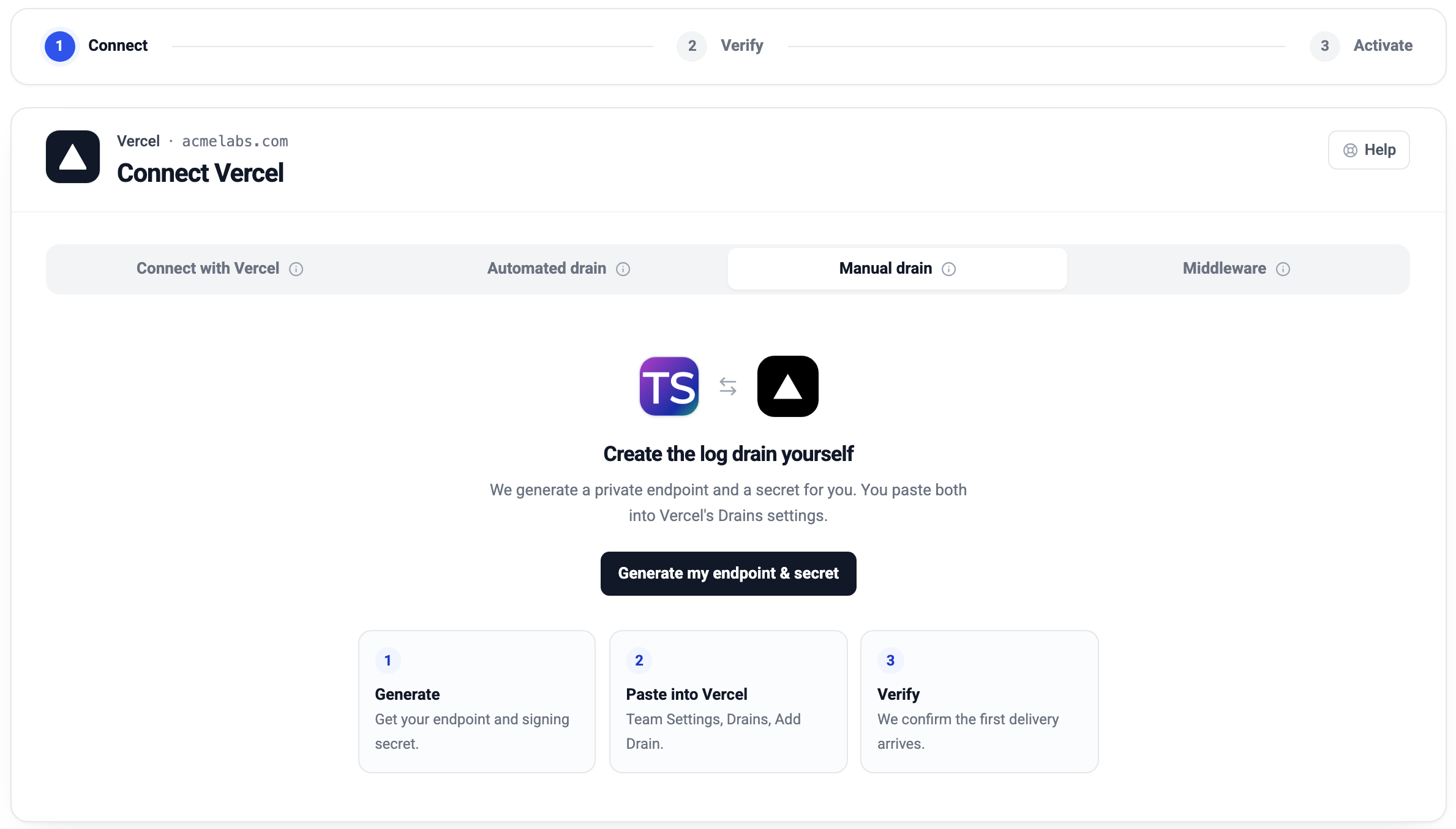
| Method | Vercel plan | Setup | You provide | Status codes |
|---|---|---|---|---|
| Connect with Vercel (recommended) | Pro or Enterprise | About 1 min | One click in Vercel | Every request |
| Automated drain | Pro or Enterprise | About 2 min | A Vercel access token (used once, never stored) | Every request |
| Manual drain | Pro or Enterprise | About 5 min | Two values to paste into Vercel (endpoint and secret) | Every request |
| Middleware | Any plan, including Hobby | About 5 min | One file and two environment variables | Not available |
Which should I pick?
- Pro or Enterprise: Connect with Vercel. Use an automated or manual drain only if your organization does not allow marketplace integrations, or you want to review every setting yourself.
- Hobby plan: Middleware. You add one
middleware.jsfile to your Next.js project, and two environment variables. It reports only AI crawler visits, never regular visitors. It runs before your page is produced, so it cannot see the real HTTP status code, and crawl-health insights based on 4xx and 5xx errors are not meaningful with it. It requires Next.js (or a framework that runs a rootmiddleware.json Vercel). - Cloudflare in front of Vercel: use the Cloudflare Worker source on the Setup page instead.
Change or disconnect
Change which projects send logs
Disconnect (see below), then connect again and choose different projects. Because ThriveStack stays installed in your Vercel team, reconnecting takes one click.
Disconnect from ThriveStack
- Go to Attribution → Setup and open Vercel.
- Scroll to the Danger zone at the bottom and click Disconnect Vercel….
- Type your domain to confirm (you can copy it from the dialog, or paste it), then click Disconnect Vercel.
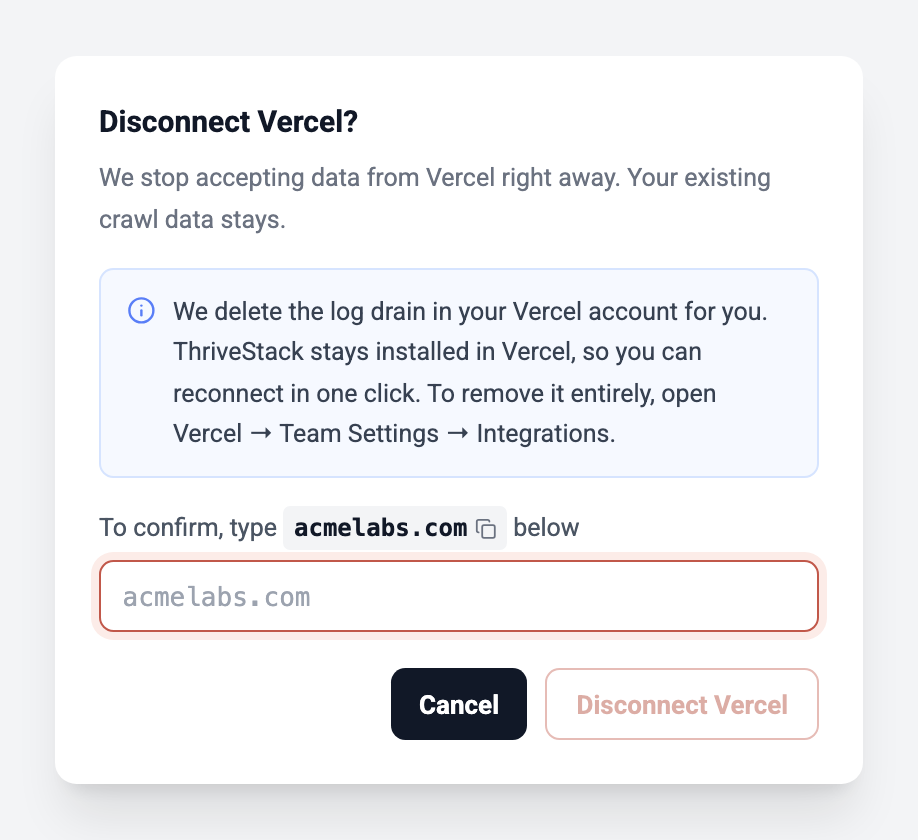
Your existing crawl data stays in ThriveStack. ThriveStack remains installed in Vercel so you can reconnect in one click.
Remove ThriveStack from Vercel completely
In Vercel, open Team Settings → Integrations, find ThriveStack Citedby and remove it. Vercel notifies ThriveStack, which stops accepting data and revokes its access. You do not need to disconnect in ThriveStack first.
Troubleshooting
| What you see | What it means and what to do |
|---|---|
| Log Drains need Vercel Pro or Enterprise | The Vercel team you picked is on the Hobby plan. Use the middleware option, which gives the same AI crawler data on any plan (without status codes), or upgrade the team in Vercel. |
| Stuck on Waiting for Vercel's first delivery | This usually clears within a minute of creating the drain. If it does not, in Vercel open Team Settings → Drains and confirm the ThriveStack drain is enabled and covers the project you picked. If it shows an error, remove and reconnect. |
| Vercel is delivering, but Waiting for an AI bot visit never completes |
Work through these in order:
|
| Couldn't reach yourdomain.com after Send test bot traffic | ThriveStack could not fetch your site. Check that the domain loads in a browser, is not behind a login or a firewall rule that blocks bots, and redirects (for example to www) end on a page that loads. |
| The dashboards are locked or empty after verifying | The AI Crawl Logs add-on is not active yet. Finish the last step, Turn on AI crawl logs. Data collected since you connected is kept and appears as soon as you activate. |
| Vercel is already connected for this domain | This brand already has a Vercel connection. Open it with View the connection, or disconnect it first to set it up again. |
| ThriveStack is already connected to that Vercel team | The team is already installed. Open Attribution → Setup → Vercel and pick a project to finish setup. |
| That Vercel install link expired or was already used | The approval was not completed within 2 hours, or the link was used already. Start the connection again from the Vercel card in ThriveStack. |
| Vercel isn't letting ThriveStack in anymore | ThriveStack was disabled or removed in your Vercel account. Choose Reconnect Vercel to approve it again. |
| The confirmation screen shows the wrong brand or team | Choose Cancel and remove. Nothing is connected. Switch to the right brand in ThriveStack, then add ThriveStack from Vercel again, or use Use a different Vercel team. |
| You did not start the connection, but you were sent to a confirmation screen | Choose Cancel and remove. Only continue if you clicked Add in Vercel yourself. |
Still stuck? Contact support@thrivestack.ai or use Talk to us in the connect panel. Include your domain and, if you can, the time you connected.
Frequently asked questions
Will this slow down my site?
No. Vercel sends logs to ThriveStack after the request is served, outside the path your visitors take. Your pages are not touched.
Do I need to change my code or redeploy?
No. Connect with Vercel adds no files and no environment variables to your projects.
Does ThriveStack see my visitors?
Vercel includes all requests of the selected projects in the drain, so ThriveStack's servers receive them, but visits from regular people are dropped on arrival and never stored. Only AI crawler visits on your domain are kept. See What ThriveStack collects.
Can I track more than one project?
Yes. Tick as many projects as you need, or choose All projects. Only requests for your tracked domain are kept.
Is my Vercel access token stored?
With Connect with Vercel, Vercel issues ThriveStack a token for the integration. It is stored encrypted and used only to list your projects and to create or delete the log drain. With the Automated drain method, the token you paste is used once and never stored.
How do I stop everything?
Disconnect in ThriveStack, or remove the integration in Vercel. Either way, data stops flowing immediately. See Change or disconnect.